
Table of Contents
Finding the best monitor for coding and reading in 2026 is no longer just about screen size; it’s about protecting your eye health and maximizing your productivity. Whether you are a professional developer or a student, choosing a display that combines sharp text clarity with advanced eye care technology is essential for those long hours of deep work. In this guide, we will explore the top-rated monitors that offer the perfect balance of resolution, ergonomics, and visual comfort.
Why Programmers Need Specialized Monitors
Unlike gaming monitors that prioritize high refresh rates or photo editing displays focused on color accuracy, programming monitors need exceptional text clarity and eye comfort features. When you’re reading thousands of lines of code daily, fuzzy or pixelated text becomes a recipe for eye fatigue, headaches, and reduced productivity.
The challenge is that most mainstream monitors are designed for general use, watching videos, browsing, or casual work. But programmers have unique needs that require specific features to maintain visual comfort during extended coding sessions.
Quick Comparison: Top 5 Coding Monitors at a Glance
| Monitor Model | Price | Size | Resolution | PPI | Best For | Eye Care Features |
| BenQ RD280U | ~$600 | 28″ | 3840×2560 (4K+) | 163 | Professional developers, vertical coding | TÜV certified, Night Hours Protection, MoonHalo backlight |
| Dell UltraSharp U2725QE | ~$500 | 27″ | 3840×2160 (4K) | 163 | Laptop users, USB-C setups | ComfortView Plus (TÜV), Flicker-free |
| BenQ GW2480 | ~$150-200 | 24″ | 1920×1080 (FHD) | 92 | Budget-conscious students | Brightness Intelligence, Low Blue Light |
| ASUS ProArt PA27JCV | ~$800 | 27″ | 5120×2880 (5K) | 218 | Developers & Designers | TÜV certified, Flicker-free |
| BenQ RD240Q | ~$350 | 24.1″ | 2560×1600 (WUXGA) | 118 | Secondary/vertical monitor | Full RD series eye care suite |
This comparison table helps you quickly identify which monitor fits your budget and coding workflow. For detailed reviews, keep reading below.
Key Features That Make the Best Monitor for Coding and Reading
1. High Pixel Density (PPI) for Crystal -Clear Text
Pixel density, measured in Pixels Per Inch (PPI), is the most critical factor for text clarity. Higher PPI means sharper, more legible text that’s easier on your eyes.
Recommended PPI for programming:
- 24-inch monitors: 1440p (QHD) resolution = ~122 PPI (ideal sweet spot)
- 27-inch monitors: 4K (UHD) resolution = ~163 PPI (Retina-like clarity)
- 28-inch monitors: 4K resolution = ~157 PPI (excellent for coding)
For reference, anything below 90 PPI will look pixelated and fuzzy, especially for small font sizes used in code editors. Studies show that monitors with 132 PPI or higher significantly reduce physical discomfort, including headaches and musculoskeletal strain, compared to lower pixel density displays.
My Experience: Why 1080p Is Not Enough for VS Code Anymore
Let me share something frustrating that happened to me two years ago. I was working on a complex React project using VS Code on my old 27-inch 1080p monitor (just 81 PPI). After 6-8 hours of coding, I’d get severe headaches, and my eyes felt like they were burning.
The problem? I couldn’t see the difference between similar characters clearly, such as, “0” vs “O,” “1” vs “l,” or “rn” vs “m” in smaller fonts. I kept increasing font size, which meant less code visible on screen, forcing me to scroll constantly. It was a productivity nightmare.
When I finally upgraded to a 27-inch 4K monitor (163 PPI), the difference was shocking. Text looked razor-sharp, like reading a printed book. I could comfortably use size 12-13 fonts and see entire functions without scrolling. My eye strain reduced by at least 70%, and those daily headaches? Gone.
The lesson: If you’re serious about coding, don’t compromise on pixel density. Your eyes will thank you, and your productivity will soar.
2. Eye Care Technology: The Non-Negotiable Feature
Professional programmers can easily spend 8-12 hours daily in front of their screens. Without proper eye care features, this leads to Computer Vision Syndrome (CVS) a condition characterized by dry eyes, blurred vision, headaches, and neck pain.
Essential eye care features:
Low Blue Light Filter: Blue light in the 415-455nm wavelength band is particularly damaging to your eyes, causing eye strain and disrupting your circadian rhythm (sleep cycle). TÜV Rheinland-certified low blue light monitors reduce harmful blue-violet light while maintaining color accuracy.
Flicker-Free Technology: Most monitors adjust brightness through rapid flickering (Pulse Width Modulation), which can cause eye fatigue even if you don’t consciously notice it. Flicker-free technology eliminates this invisible flickering, dramatically reducing eye strain during long work sessions.
Ambient Light Sensor: Advanced monitors detect room lighting and automatically adjust screen brightness and color temperature accordingly. This prevents the common problem of viewing a bright screen in a dimly lit room, which strains your eyes.
Night Mode Protection: For late-night coding sessions, specialized night modes activate optimal eye-care filters that reduce eye strain in low-light conditions while keeping text readable.
3. Resolution and Aspect Ratio: More Lines of Code
While 1080p was once standard, professional programmers now prefer higher resolutions:
Best resolution options for coding:
- 1440p (2560×1440): Perfect for 24-27 inch monitors, offers excellent clarity without scaling issues
- 4K (3840×2160): Ideal for 27-32 inch displays, provides Retina-like sharpness
- Ultrawide formats: Allow side-by-side code editor, browser preview, and terminal windows
Aspect ratio considerations:
- 16:9 (standard): Works well but requires more scrolling
- 16:10: Provides 11% more vertical space, great for viewing additional code lines
- 3:2: Revolutionary for programming (like BenQ RD280U), gives you maximum vertical space for reading long files without constant scrolling
4. Ergonomic Adjustability and Pivot Function
Programming involves lots of vertical text reading. Many developers prefer rotating their monitor 90 degrees into portrait mode to see more code lines simultaneously.
Look for monitors with:
- Height adjustment (minimum 130mm range)
- Tilt capability (+35° to -5°)
- Swivel function (±180°)
- Pivot function: Ability to rotate 90° for vertical coding view
- VESA mount compatibility for monitor arms
5. Matte Screen with Anti-Glare Coating
Glossy screens might look vibrant in showrooms, but they’re terrible for coding environments with overhead lighting or windows. Screen glare forces you to squint, causing unnecessary eye strain.
Premium programming monitors feature Nano Matte Panels or anti-glare coatings that eliminate reflections while maintaining image clarity. TÜV Rheinland even offers “Reflection-Free” certification for monitors that excel in this area.
Top 5 Best Monitors for Coding and Reading in 2026
1. BenQ RD280U – Best Overall Programming Monitor
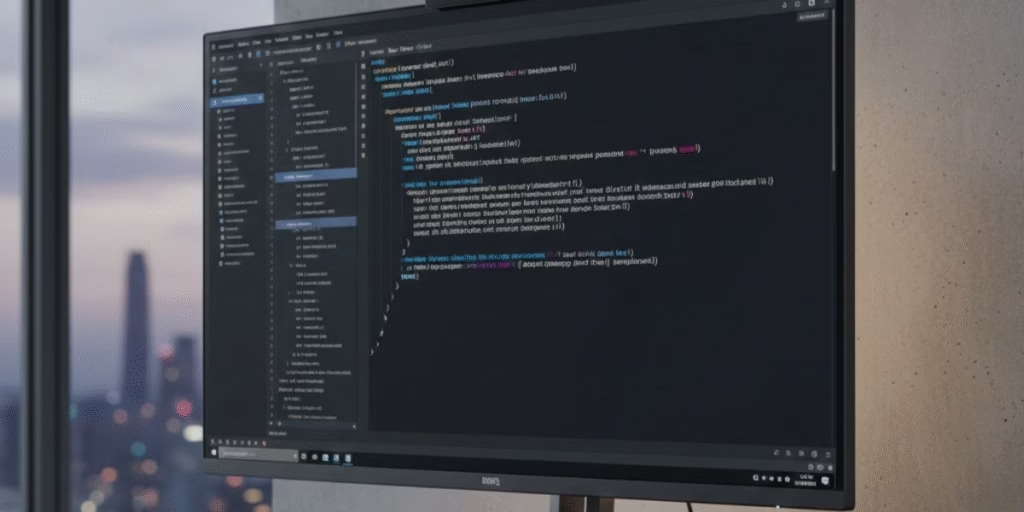
Price: ~$600 | Size: 28″ | Resolution: 3840×2560 (4K+) | PPI: 163
The BenQ RD280U revolutionizes programming monitors with its unique 3:2 aspect ratio, significantly taller than standard 16:9 displays. This extra vertical space lets you view 30% more code lines simultaneously, reducing constant scrolling.
Key Features:
- Coding Mode: Specialized color profiles that optimize text clarity for both dark and light themes
- MoonHalo Backlight: Built-in ambient lighting reduces contrast between screen and surroundings
- Night Hours Protection: Automatically activates optimal eye-care filters for late-night sessions
- Nano Matte Panel: TÜV Reflection-Free certified for zero glare
- Pivot Function: Easily rotate to portrait mode via Display Pilot 2 software
- Eye Reminder: Infrared sensor detects your presence and reminds you to take breaks
Why it’s best for coding: The taller 3:2 aspect ratio is game-changing for developers. Combined with industry-leading eye care technology and purpose-built coding modes, this monitor is specifically designed for programmers who spend all day reading and writing code.
Who should buy: Professional developers willing to invest in their eye health and productivity. At $600, it’s premium-priced but offers features no competitor matches.
2. Dell UltraSharp U2725QE – Best 4K Value Monitor
Price: ~$500 | Size: 27″ | Resolution: 3840×2160 (4K) | PPI: 163
Dell’s UltraSharp series has long been trusted by professionals, and the U2725QE delivers exceptional 4K clarity at a reasonable price.
Key Features:
- IPS Black panel technology: Superior contrast ratio for deeper blacks
- Built-in USB-C hub: 90W Power Delivery charges your laptop while driving the display
- ComfortView Plus: Hardware-based low blue light solution (TÜV certified)
- Extensive connectivity: DisplayPort, HDMI, USB-C, multiple USB ports
- Premium build quality: Sturdy stand with full ergonomic adjustments
Best for: Developers who need 4K sharpness with excellent build quality and USB-C connectivity for laptop setups. The built-in hub eliminates cable clutter, perfect for clean, minimalist workstations.
3. BenQ GW2480 / GW2280 – Best Budget Eye Care Monitor
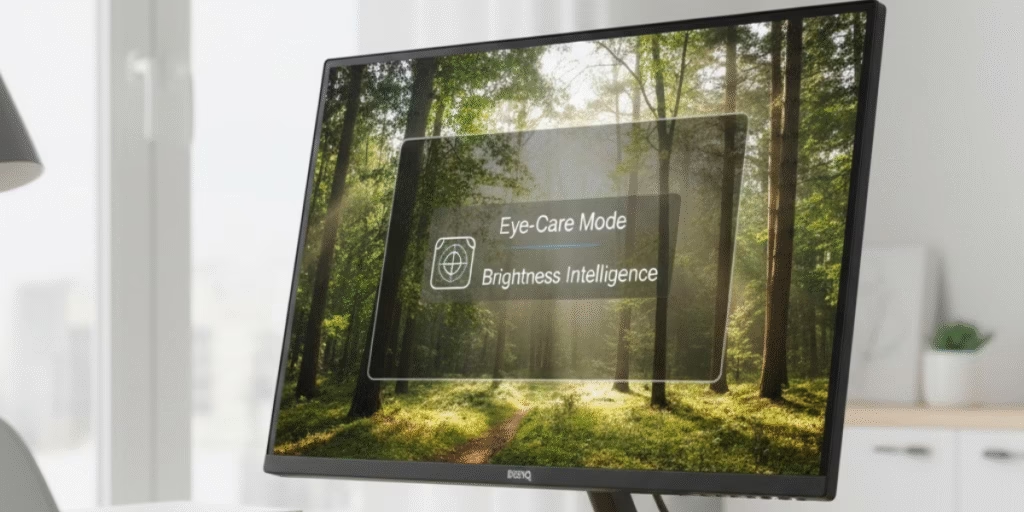
Price: ~$150-200 | Size: 24″ | Resolution: 1920×1080 (FHD) | PPI: 92
If you’re on a tight budget but still want proper eye care features, BenQ’s GW series offers remarkable value.
Key Features:
- Brightness Intelligence (B.I.) Technology: Automatically adjusts brightness and color temperature based on ambient light
- Low Blue Light filter: Multiple levels to choose from
- Flicker-Free technology: Eliminates screen flickering
- IPS panel: Better colors and viewing angles than TN panels
- Ultra-slim bezels: Perfect for dual-monitor setups
Best for: Students, junior developers, or anyone wanting eye care technology without breaking the bank. While 1080p isn’t ideal for large screens, it’s acceptable for 24-inch displays when combined with proper eye care features.
4. ASUS ProArt PA27JCV – Best 5K Monitor for Pros
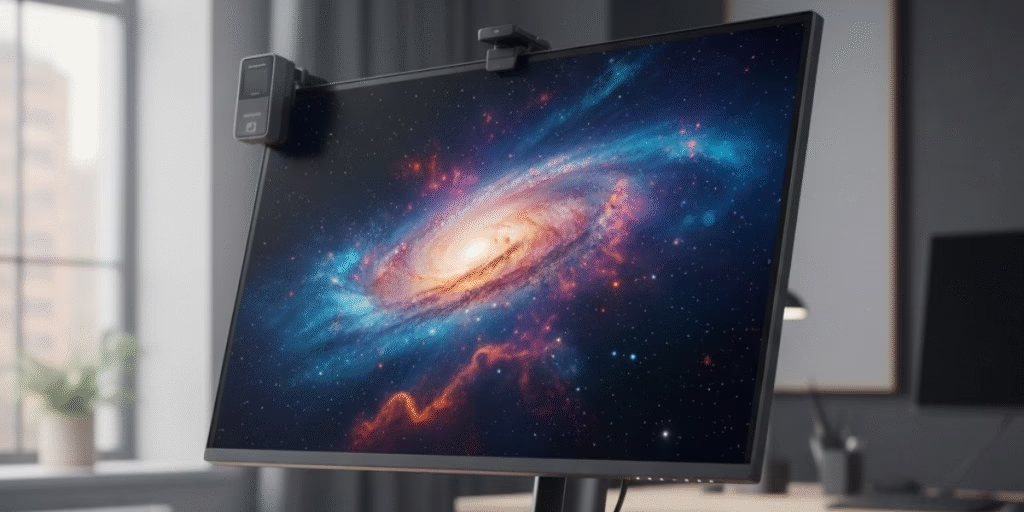
Price: ~$800 | Size: 27″ | Resolution: 5120×2880 (5K) | PPI: 218
For developers who demand absolute clarity and are willing to pay the premium price, this 5K monitor delivers Retina-level sharpness.
Key Features:
- 5K resolution: Unmatched text clarity, individual pixels invisible at normal viewing distance
- Professional color accuracy: Factory calibrated, ideal if you also do design work
- Thunderbolt 4: Single-cable solution with 96W charging
- ASUS Eye Care: TÜV-certified low blue light and flicker-free technology
- Ergonomic stand: Full height, tilt, swivel, and pivot adjustments
Best for: Professional developers who also do creative work (UI/UX design, photo editing). The 5K resolution provides incredible clarity, although you may need to scale it to 150% for a comfortable text size.
5. BenQ RD240Q – Best Vertical/Secondary Monitor
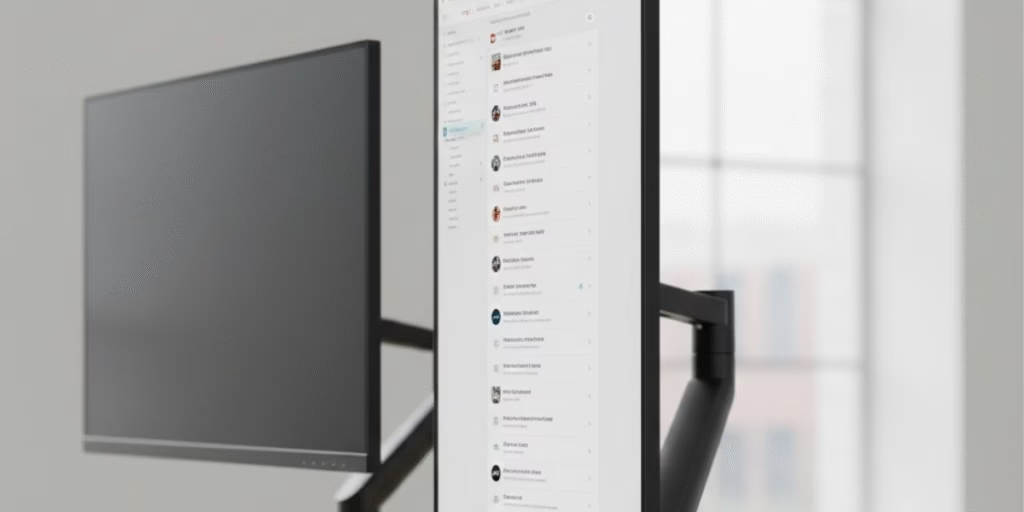
Price: ~$350 | Size: 24.1″ | Resolution: 2560×1600 (WUXGA) | PPI: 118
The perfect companion monitor for your main display, especially for debugging or documentation.
Key Features:
- 16:10 aspect ratio: More vertical space than standard 16:9
- Perfect secondary size: Doesn’t overpower your main display
- Dual-pivot function: Rotate left or right for vertical coding view
- All RD series eye care features: Low blue light, flicker-free, coding modes
- Compact footprint: Ideal for limited desk space
Best for: Developers who want a dedicated vertical monitor for debugging, reading documentation, or monitoring logs while coding on their main display.
How to Choose the Right Monitor Size for Programming
24-inch monitors: Ideal for smaller desks or dual-monitor setups. Pair with 1440p resolution for ~122 PPI, excellent text clarity without scaling issues.
27-inch monitors: The sweet spot for most programmers. At 4K resolution (163 PPI), you get Retina-like clarity. Can use native resolution or 125% scaling depending on preference and eyesight.
28-32 inch monitors: Best for single-monitor setups or ultrawide displays. At 4K resolution, it it provides ample screen real estate for multiple windows. Sit 2.5-3 feet away for optimal viewing.
Viewing distance matters: Your PPI requirements change based on how far you sit from the screen. At 24 inches away, you need ~163 PPI for imperceptible pixels. At 36 inches, 110 PPI is sufficient.
Monitor Settings Optimization: The Missing Piece
Even the best monitor won’t help your eyes if you don’t optimize the settings properly. After purchasing the best monitor for coding, don’t forget to optimize your monitor settings for eyesight to get the most comfort and productivity from your new display.
Key settings to adjust:
- Brightness: Match your room’s ambient lighting (typically 120-150 nits for office environments)
- Color temperature: 5500-6500K during the day, 3000-4000K at night
- Contrast: 70-80% (not 100%, too harsh on eyes)
- Blue light filter: Medium level during the day, high level after sunset
- Text scaling: Adjust until comfortable (typically 100-125% for 4K monitors)
Monitor Connectivity for Developers
Modern programming workflows often involve multiple devices. Choose monitors with versatile connectivity:
USB-C with Power Delivery: Single-cable solution that charges your laptop (65W minimum, 90W+ ideal) while driving the display and connecting peripherals. Essential for MacBook and modern laptop users.
DisplayPort 1.4+: Best for desktop PCs, supports 4K at 60 Hz+ with full color depth.
HDMI 2.0/2.1: Backup connection for secondary devices or dual PC setups.
Built-in USB hub: Extra USB ports on the monitor for keyboards, mice, webcams, or phone charging.
Daisy-chaining support: DisplayPort MST allows connecting multiple monitors from a single cable (useful for multi-monitor setups).
Common Mistakes to Avoid When Buying a Coding Monitor
Prioritizing size over pixel density
A 32-inch 1080p monitor (68 PPI) will look pixelated and terrible for coding. Always calculate PPI before buying.
Ignoring eye care features
Many developers focus only on resolution and size, then wonder why they get headaches. Low blue light and flicker-free are non-negotiable for all-day use.
Buying without trying the vertical mode
If you’ve never tried coding with a vertical monitor, you’re missing out. Many monitors lack proper pivot functionality; verify before buying.
Forgetting about scaling issues
High-resolution monitors sometimes cause scaling problems with older IDEs or tools. Check if your development environment supports HiDPI displays.
Overlooking the return window
Monitors are personal; what works for others might not work for you. Buy from retailers with good return policies so you can test for 1-2 weeks.
Additional Features Worth Considering
KVM Switch: Built-in keyboard-video-mouse switching for users who need to control multiple computers from one setup.
Picture-in-Picture (PiP): Display multiple inputs simultaneously, useful when monitoring servers while coding.
Monitor Light Bar: Clips onto your monitor and illuminates your desk without creating screen glare. Popular options include the BenQ ScreenBar and similar products.
Desktop Partition Software: Some monitors include software that divides your screen into virtual sections for better window management.
Auto-rotation: Automatically adjusts screen orientation when you pivot the monitor (requires software like Display Pilot 2).
Conclusion:
Your monitor is not just another computer peripheral; it’s your primary workspace window. Programmers and students who read code or documents all day deserve displays that protect their eyesight while delivering exceptional clarity.
The best monitor for coding and reading in 2026 should have:
- High pixel density (120+ PPI minimum)
- TÜV-certified eye care technology
- Matte anti-glare screen
- Full ergonomic adjustability with pivot
- Resolution appropriate for screen size
For most developers, the BenQ RD280U offers unmatched features specifically designed for programming work. The unique 3:2 aspect ratio, coding modes, and comprehensive eye care technology make it worth the investment.
Budget-conscious users will find excellent value in the Dell UltraSharp U2725QE (4K clarity with USB-C hub) or BenQ GW2480 (affordable eye care features).
Remember: The cheapest option is rarely the best value when it comes to your eye health. A quality programming monitor lasts 5-10 years, making it one of the best long-term investments in your development career.
After purchasing your ideal coding monitor, optimize it properly by learning how to adjust monitor settings for eye health to maximize comfort during those long debugging sessions.
FAQs
Q: What monitor size is best for coding?
A: 27 inches is the sweet spot for most programmers. It provides ample screen space without requiring excessive head movement. Pair it with 4K resolution for optimal clarity.
Q: Do I need 4K for programming?
A: Not strictly necessary, but highly recommended. 4K at 27 inches (163 PPI) provides text clarity similar to Apple’s Retina displays, significantly reducing eye strain during long sessions.
Q: Are curved monitors good for coding?
A: Generally, no. Curved monitors are designed for immersive gaming and movies. For coding, you’re mostly looking at text, where a flat screen with high PPI is more beneficial.
Q: Should I use portrait or landscape mode for coding?
A: Many developers use the main monitors in landscape for writing code and a secondary monitor in portrait for reading documentation or debugging. Try both orientations to see what fits your workflow.
Q: How important is refresh rate for programming?
A: Not very. 60 Hz is perfectly fine for coding. Unlike gaming, you don’t need high refresh rates. Focus the budget on resolution and eye care features instead.
Q: Can I use a TV as a programming monitor?
A: Not recommended. TVs have poor pixel density at desk viewing distances, input lag issues, and lack proper color accuracy and text rendering optimizations that monitors provide.

One thought on “Best Monitor for Coding and Reading in 2026: Complete Guide”