Table of Contents
When I first added a second monitor to my workspace, I thought setting up a dual monitor setup for coding was as simple as plugging in a USB cable and getting back to work. Reality hit hard three hours into coding when my neck pain became so severe that it ruined my entire day.
That’s why today I’m not just telling you how to connect monitors but how to master your dual monitor setup for coding the right way for your health and productivity.
Why a Dual Monitor Setup for Coding Is a Game Changer?
Here’s a simple question: How many times do you press Alt+Tab in an hour? Fifty times? A hundred? Every time you switch between your code editor and Stack Overflow or documentation, your brain loses focus for what researchers call “context switching cost.” Studies show it can take up to 23 minutes to fully regain concentration after an interruption.
My single-screen workflow used to look like this:
- Write code
- Hit an error
- Open browser
- Search for a solution
- Switch back to the code editor
- Forget the exact error message
- Open the browser again
This cycle was so frustrating that fixing simple bugs would sometimes take hours instead of minutes.
Horizontal vs. Vertical: Which Setup Actually Works?
This is the biggest decision you’ll make, and 90% of developers get it wrong on their first try.
Horizontal Setup (Side-by-Side)
This is the traditional approach where both monitors sit horizontally in front of you. This works best when you’re working with wide content like databases or spreadsheets or when you need to compare two full applications side by side.
Best for:
- Web development (browser + code editor)
- Data analysis and SQL queries
- Video editing or graphic design
- Gaming and entertainment mixed with coding
The hidden problem: Your neck constantly turns left and right, creating muscle imbalance. After six months of this setup, I developed what my physiotherapist called “programmer’s neck,” where the left side of my neck was noticeably tighter than my right.
Vertical Setup (Portrait Mode)
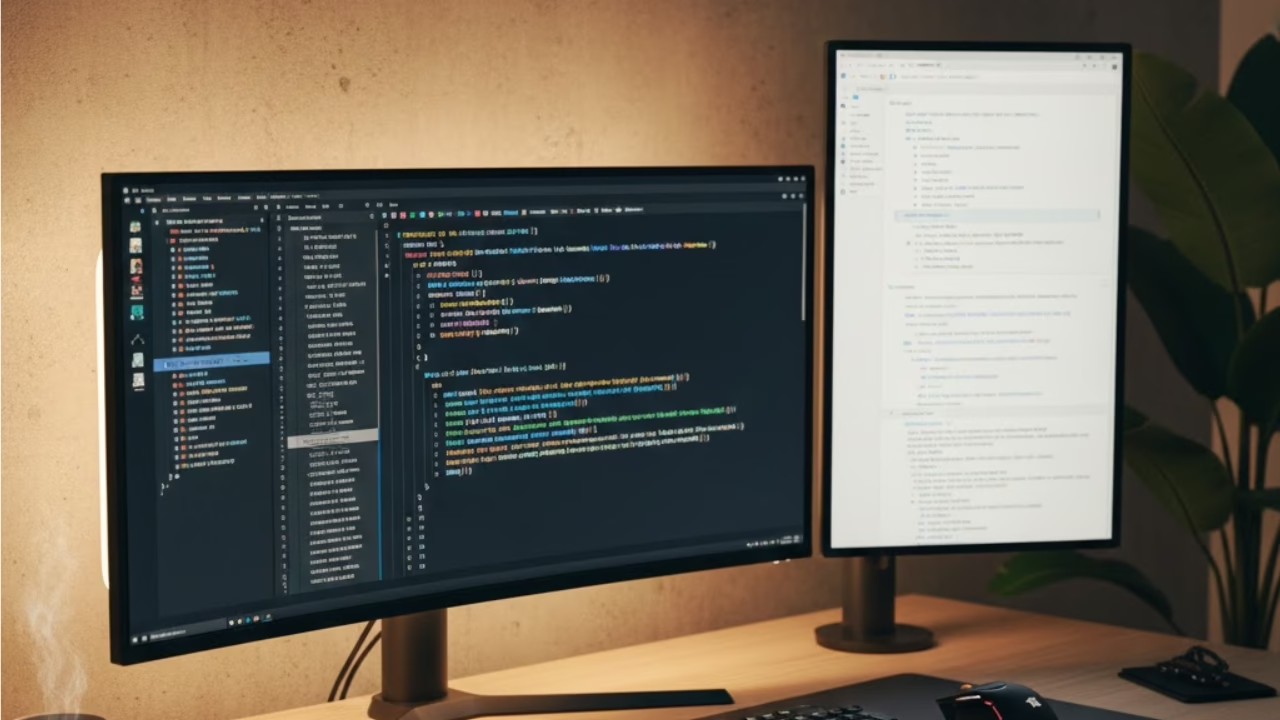
Here’s where that pivot function from modern monitors becomes essential. One monitor stays horizontal while the other rotates 90 degrees into portrait mode.
Why this changed everything for me: A vertical monitor displays 60-70 lines of code compared to 35-40 lines on a horizontal screen. When you’re debugging or reading through long functions, this matters tremendously.
Best for:
- Reading documentation (one vertical monitor dedicated to docs)
- Code review and debugging
- Reading long log files or terminal outputs
- Writing or editing markdown files
My current setup: main monitor horizontal for active coding, secondary vertical for documentation and terminal. This eliminated 80% of my scrolling.
The Hybrid Approach (What I Actually Recommend)
After testing both setups for months, here’s what works: Primary monitor horizontal at eye level for your main coding work, secondary monitor vertical positioned slightly to the side for documentation, logs, or communication tools like Slack.
The 3:2 aspect ratio monitors work exceptionally well in vertical mode because they show more content width than traditional 16:9 displays when rotated.
The Neck Strain Problem Nobody Talks About
Here’s the truth: Bad dual monitor placement causes more long-term damage than sitting in a cheap chair. I learned this the expensive way through physical therapy sessions.
The 20-20-20 Rule for Dual Monitors
Traditional eye care advice says every 20 minutes, look at something 20 feet away for 20 seconds. With dual monitors, I modified this:
- Every 20 minutes, alternate which monitor you primarily focus on
- Every hour, stand up and look away from both screens
- Position monitors so neither requires more than 35 degrees of neck rotation
The Perfect Angle Setup
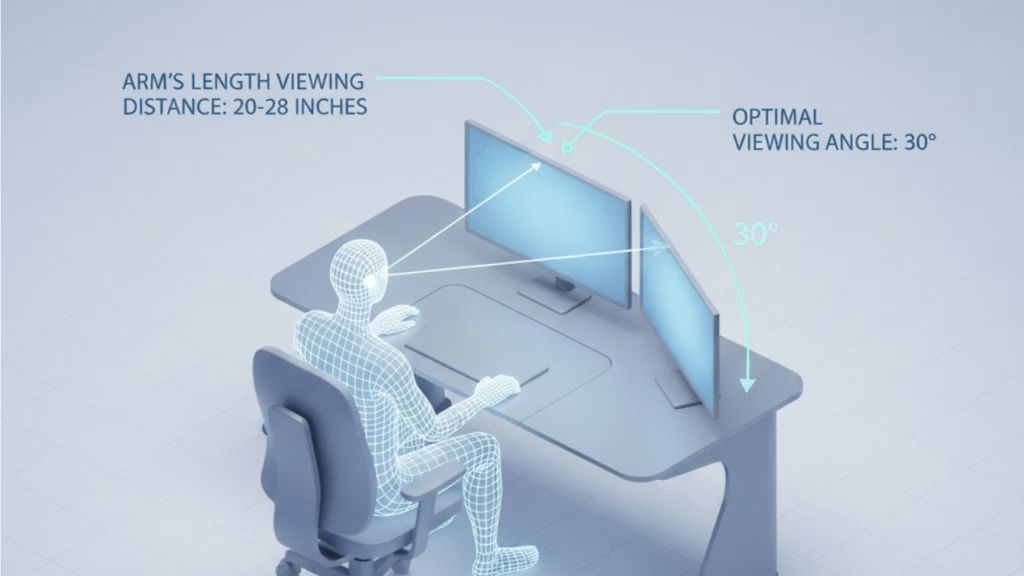
After consulting with an ergonomics specialist, here’s the science-backed positioning:
Primary Monitor:
- Top of screen at or slightly below eye level
- 20-26 inches from your face
- Directly in front of you (0-degree neck rotation)
- Tilted back 10-20 degrees
Secondary Monitor:
- Same distance from eyes as primary
- Angled inward 30 degrees toward you
- Positioned so you rotate your eyes more than your neck
- If vertical, place it closer (18-20 inches) since you’ll read text on it
The mistake everyone makes: Placing both monitors equally to the left and right, forcing constant neck rotation. Your primary monitor should be straight ahead. The secondary is supplementary.
Productivity Hacks for Maximum Efficiency
Having two monitors doesn’t automatically make you productive. The setup and workflow matter.
The Documentation-First Workflow
Left/Primary Monitor: Your active code editor
Right/Secondary Monitor: Official documentation open
Why this works: When you encounter an unfamiliar function or library, you don’t break focus by switching windows. Your eyes simply glance right, scan the docs, and return to coding. This reduced my “what was I doing?” moments by at least 60%.
The Debug-and-Compare Strategy
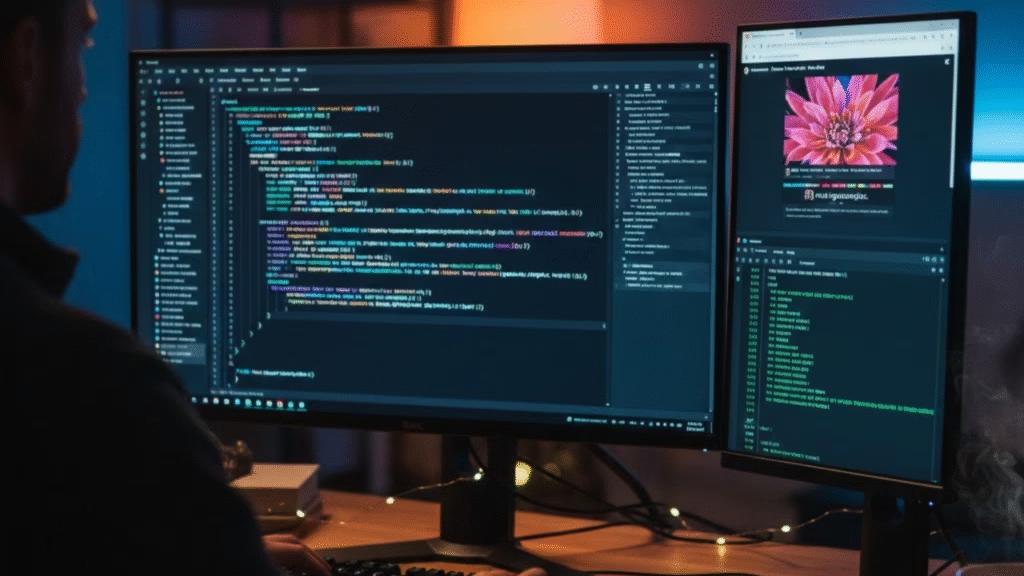
Monitor 1: Code editor with the problematic function
Monitor 2: Terminal showing error logs or browser with console open
This setup is invaluable during debugging. You can modify code while simultaneously watching how the output changes in real-time without any window switching.
The Communication-Isolation Method
Primary Monitor: Deep work only (code editor, database tools, design software)
Secondary Monitor: All communication tools (Slack, email, calendar notifications)
This creates a mental boundary. When you need focus, physically turn away from the secondary monitor. You’re still available for urgent messages, but you’re not constantly distracted by every notification.
The Learning-While-Building Approach
Monitor 1: Tutorial video or course material
Monitor 2: Your IDE where you code along
For developers learning new frameworks or languages, this eliminates the constant pause-play-switch cycle. I used this exact setup while learning Rust, and it cut my learning time significantly.
The Hidden Eye Care Advantage
Here’s something most dual-monitor guides completely miss: proper dual monitor setup actually reduces eye strain when done correctly.
- Blue Light Management: Both monitors should have blue light filters active after sunset. I use Flux, which automatically adjusts both screens based on the time of day. The key is making sure both monitors match in color temperature; otherwise, your eyes constantly readjust between different light sources.
- Brightness Matching: This is critical. If one monitor is significantly brighter than the other, your pupils constantly dilate and contract as you look between them, causing serious eye fatigue. Use your OS settings or monitor buttons to match brightness levels exactly.
- The 1-Finger Test: Hold one finger vertically between both monitors at arm’s length. Both screens should illuminate your finger equally. If one casts a noticeably stronger glow, adjust accordingly.
Technical Setup: Beyond Just Plugging In Cables
Display Connection Priority
If your computer has multiple video output ports, connection order matters for performance:
- DisplayPort or USB-C: Best for your primary monitor (supports higher refresh rates and resolution)
- HDMI: Acceptable for secondary monitor
- DVI/VGA: Avoid if possible (outdated technology)
Resolution and Scaling
The biggest mistake: Running both monitors at different scaling percentages. This makes dragging windows between screens frustrating as elements resize unpredictably.
Best practice: If monitors have different native resolutions, use your operating system’s display settings to make the scaling feel consistent across both screens. On Windows 11, this is under Settings > Display > Scale.
Software That Makes Dual Monitors Better
PowerToys (Windows): The FancyZones feature lets you create custom window layouts. I have zones specifically for coding workflows.
Rectangle (Mac): Keyboard shortcuts to snap windows to specific monitor zones.
DisplayFusion: Advanced multi-monitor taskbar management.
Common Mistakes That Kill Productivity
Putting monitors too far apart
If your monitors are separated by more than a monitor’s width, you’ll develop neck strain. The gap between bezels should be minimal.
Making the secondary monitor your primary
Your most-used monitor should be directly in front of you, not off to the side. Switch them in your OS display settings if you installed them backward.
Running different color profiles
Monitors from different manufacturers often have vastly different color profiles. Calibrate them to look similar, or your eyes will constantly readjust.
Forgetting about cable management
Tangled cables aren’t just ugly; they restrict how you can adjust monitor positions. Use cable clips or a monitor arm with integrated cable management.
Is a Dual Monitor Setup Worth It?
After three years of testing different configurations, I can definitively say yes, but only if you set it up correctly. A poorly configured dual-monitor setup is worse than a single well-positioned screen.
The productivity gain isn’t just about having more screen space. It’s about reducing context switching, eliminating window management overhead, and creating dedicated zones for different types of work. Combined with proper ergonomics and eye care, dual monitors can genuinely transform how you code.
My personal productivity increased by roughly 25-30% after optimizing my dual-monitor workflow, but more importantly, my end-of-day neck and eye fatigue decreased dramatically.
Start with your primary monitor positioned perfectly for your primary work. Add the secondary monitor as a supplement, not an equal. Pay attention to your neck and eye comfort in the first week, and adjust aggressively. Your future self will thank you.
What’s Your Setup Look Like? Do you prefer a vertical screen or a classic side-by-side horizontal layout? Let me know in the comments below! Also, if you haven’t picked your second screen yet, check out my guide on the [Best Monitor for Coding and Reading] to find the perfect match for your eyes.