
Table of Contents
Selecting the right monitor cable is like choosing the foundation for your house; if it’s weak, the whole experience fails. Many people ignore this part, thinking all cables are the same, but the truth is, your cable directly impacts your screen’s resolution, refresh rate, and color accuracy.
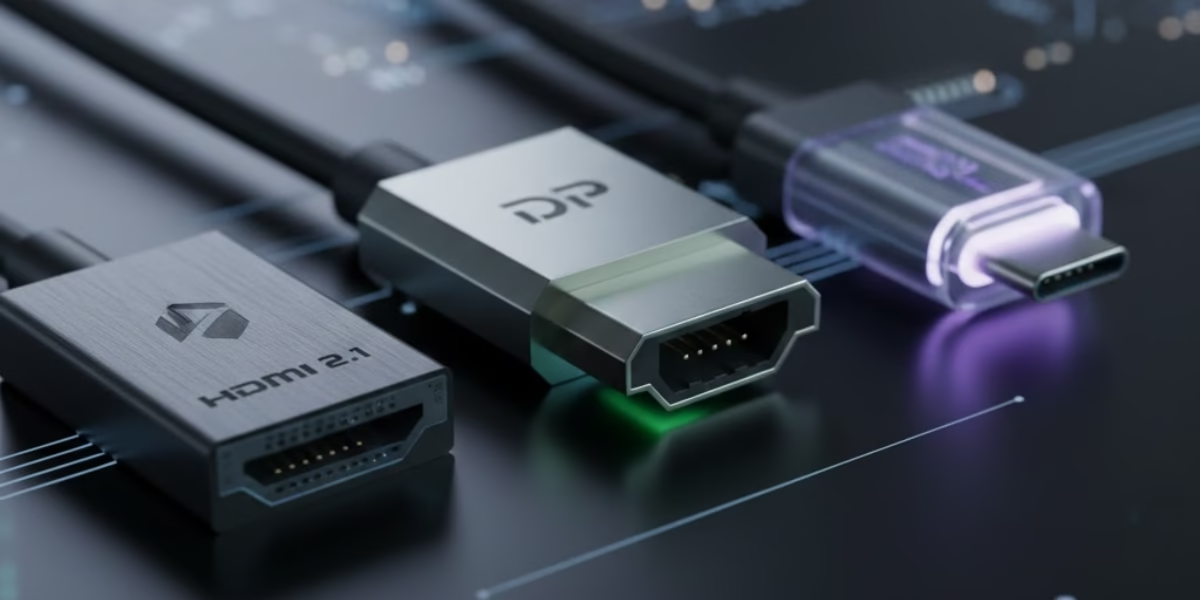
To get the best visual experience, understanding the different monitor cable types is essential because using the wrong connection can limit your screen’s performance
Whether you are building a high-end gaming rig, connecting a laptop for work, or setting up a professional editing suite, knowing which cable to use is the only way to maximize your hardware’s potential.
Why Does the Cable Matter? Understanding the Basics
The cable is the bridge between your graphics card and your monitor. If that bridge isn’t wide enough, your data gets “bottlenecked.” Modern cables focus on three main aspects:
- Bandwidth: Think of this as lanes on a highway. Higher bandwidth (like in HDMI 2.1 or DP 2.1) allows for 4K and 8K resolutions without any lag.
- Signal Type: Digital cables (HDMI, DisplayPort) preserve data perfectly, while old analog cables (VGA) lose quality over distance.
- Feature Support: Modern connections now carry audio, power (USB-C), and even support “Adaptive Sync” to prevent screen tearing during gaming.
Deep Dive into Modern Monitor Cable Types
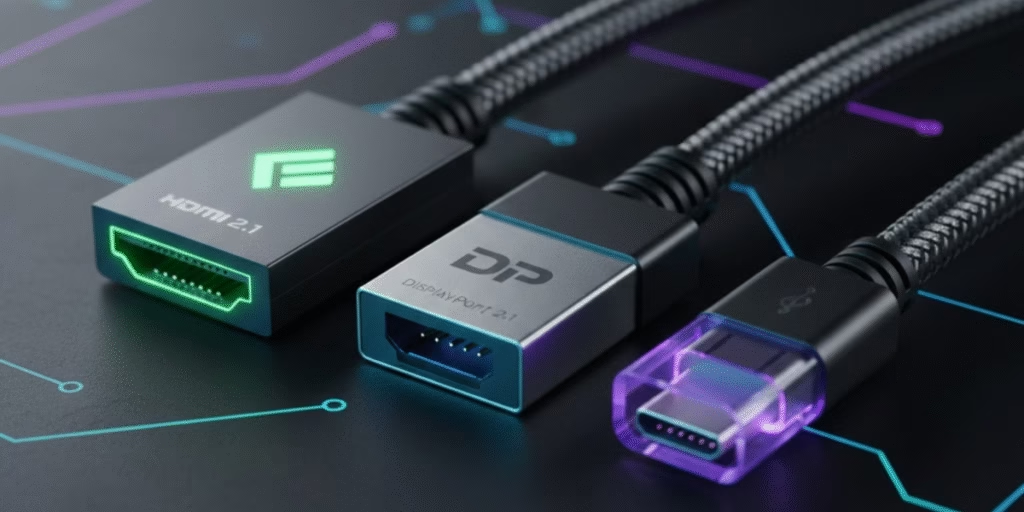
1. HDMI:
HDMI is the most common connector found in TVs, consoles, and monitors.
- HDMI 2.0: Supports 4K at 60 Hz. It’s perfect for standard office work and streaming.
- HDMI 2.1: This is the gold standard for 2026. It supports 8K at 60 Hz or 4K at 120 Hz. It also includes VRR (Variable Refresh Rate) for smooth gaming on PS5 or Xbox Series X.
- Best For: Consoles, Home Theaters, and general multimedia.
2. DisplayPort (DP):
If you are a PC gamer or a designer, DisplayPort is usually superior to HDMI.
- DisplayPort 1.4: Handles 4K at 144 Hz easily. It’s the favorite for NVIDIA G-Sync and AMD FreeSync users.
- DisplayPort 2.1: Future-proof bandwidth (up to 80 Gbps). It can run multiple 4K displays at 144 Hz from a single port through daisy-chaining (connecting monitors).
- Best For: High-refresh-rate gaming and multi-monitor workstations.
3. USB-C & Thunderbolt:
This is the ultimate setup for laptop users. A single USB-C (DisplayPort Alt Mode) cable can:
- Transmit 4K video.
- Transfer high-speed data.
- Charge your laptop (up to 100W) simultaneously.
- Best For: MacBooks, modern laptops, and keeping a clean, cable-free desk.
Legacy Cables:
- DVI (Digital Visual Interface): A transition technology. DVI-D is digital-only, while DVI-I handles both analog and digital. It’s great for older 1080p monitors but lacks audio support.
- VGA (Video Graphics Array): The old 15-pin blue connector. It is analog and susceptible to interference. Use this only for old office projectors or legacy industrial systems.
Technical Specifications Comparison
| Cable Type | Max Resolution | Max Refresh Rate | Best Use Case |
| HDMI 2.1 | 8K | 4K at 120 Hz | Gaming Consoles & TV |
| DisplayPort 2.1 | 16K | 4K at 240 Hz | Pro Workstations & PC Gaming |
| USB-C (DP Alt) | 4K / 8K | 4K at 60 Hz | Laptops & Charging |
| DVI Dual-Link | 1440p | 1080p at 144 Hz | Older Gaming Monitors |
| VGA | 1080p | 60 Hz (Analog) | Legacy Projectors |
Common Troubleshooting & Tips
- No Signal? Always check if your monitor input matches the cable (e.g., set the monitor to HDMI 1 if using an HDMI cable).
- Low Refresh Rate? If your 144 Hz monitor is stuck at 60 Hz, it might be an old HDMI 1.4 cable. Switch to DisplayPort or HDMI 2.1.
- Cable Length: Avoid passive cables longer than 15 feet. For long distances, use active cables to prevent signal flickering.
Conclusion
Choosing the right cable depends on your hardware. For gaming and professional design, DisplayPort is king. For home entertainment and consoles, HDMI 2.1 is the way to go. If you value a clean desk with a laptop, USB-C is your best friend. Don’t let a cheap cable hold back your expensive screen!
FAQs
1: What are the different types of monitor cables?
Monitor cables include HDMI, DisplayPort, VGA, DVI, USB-C, Thunderbolt, and Mini DisplayPort. Each type offers different video quality, speed, and features.
2: Is an HDMI or DP cable better?
DisplayPort generally gives better performance for gaming and high refresh rates. HDMI is great for TVs and standard monitors, especially for media.
3: Is VGA or DVI better?
DVI is better because it provides a digital signal and sharper display quality. VGA is older and gives lower resolution and blurry output.
4: What are the 7 types of monitors?
CRT, LCD, LED, OLED, plasma, touchscreen, and QLED monitors are the main types. They differ in technology, quality, thickness, and energy use.
5: Which is better, a 24- or a 27-inch monitor?
24-inch monitors are great for normal use and smaller desk spaces. 27-inch monitors offer a bigger view, better productivity, and improved gaming.

2 thoughts on “The Complete Guide to Monitor Cable Types: Choosing the Perfect Display Connection in 2026”