
Table of Contents
Digital screens have become unavoidable in modern life. Whether you’re working from home, gaming, or studying, your eyes are constantly battling Computer Vision Syndrome (CVS). Recent research reveals that 66-69% of digital device users globally now suffer from eye strain, with symptoms including headaches, blurred vision, and dry eyes. This comprehensive guide will show you exactly how to optimize your monitor settings for eyesight and productivity in 2026.
Understanding Computer Vision Syndrome in 2025-2026
The COVID-19 pandemic dramatically changed our relationship with screens. CVS prevalence skyrocketed from 65% pre-pandemic to an alarming 80-94% during lockdown periods. Even more concerning, pediatric cases increased from 20% to 50-60% as online learning became the norm.
Unlike printed materials, digital displays use pixelated construction with millions of discrete pixels undergoing continuous refresh cycles. This forces your eyes to work significantly harder, leading to reduced blink rates and sustained visual stress.
Core Monitor Settings That Actually Matter
Getting your monitor settings for eyesight right starts with understanding these five critical adjustments:
| Setting | Recommended Value | Benefit |
| Brightness | 100-150 nits (Match room) | Reduces Eye Strain |
| Contrast | 60%-70% | Sharpens Text |
| Color Temp | 3000K (Night) / 6500K (Day) | Better Sleep |
| Refresh Rate | 75 Hz minimum | Reduces Flicker |
| Text Scaling | 125% – 150% | Prevents Neck Pain |
1. Brightness: Match Your Environment
The golden rule for brightness is simple: your screen should blend with ambient lighting, not fight against it.
Practical Implementation:
- In bright rooms: Increase brightness to 200-250 nits
- In dim environments: Reduce to 80-120 nits
- Never let your screen glow like a lamp in the darkness
Recent studies confirm that proper brightness prevents pupil constriction cycles that cause ocular muscle tension. Your eyes will experience fewer squinting episodes and more stable vision throughout marathon work sessions.
2. Contrast: The Sweet Spot Range
Contrast determines how easily your eyes distinguish text from the background.
Optimal Settings:
- Document editing: 60-70% (3:1 to 5:1 ratio)
- Photo/video work: Up to 70-80% for enhanced detail
- Never use extreme contrast that creates harsh edges
Test by viewing plain text against different backgrounds. Your eyes should comfortably identify characters without drifting or refocusing.
3. Color Temperature: Sync With Your Circadian Rhythm
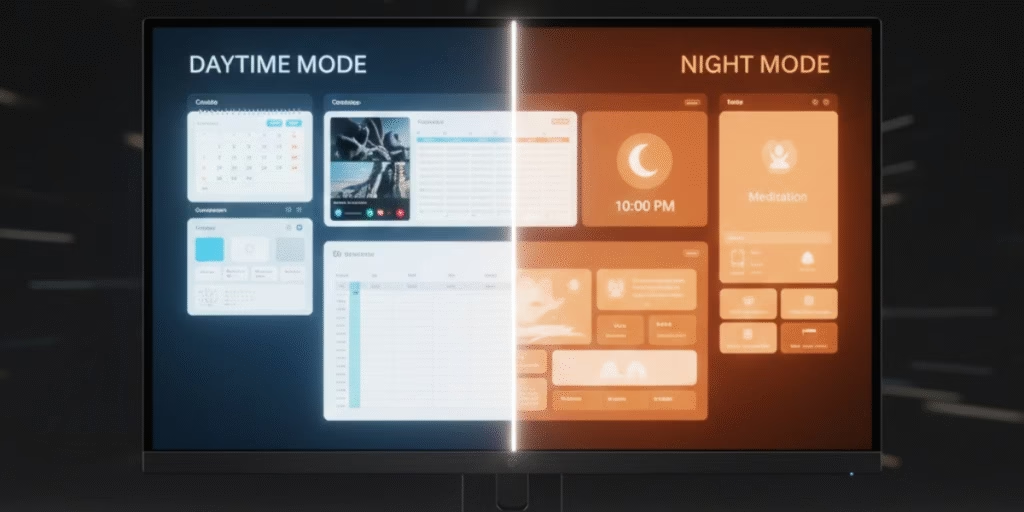
Color temperature directly impacts both visual comfort and sleep quality.
Time-Based Optimization:
- Daytime: 5,500-6,500K (neutral to cool) for alertness
- Evening: 3,000-4,000K (warm) using Night Shift or f.lux
- Why it matters: Blue light suppresses melatonin after sunset
This simple adjustment reduces eye soreness and improves sleep hygiene by respecting your body’s natural rhythms.
4. Refresh Rate: Beyond the Hype
Here’s a surprising finding from 2025 research: while refresh rates above 60 Hz do reduce eye strain, the difference becomes minimal beyond 75 Hz for productivity tasks.
Reality Check:
- 60 Hz → 75 Hz: Noticeable improvement
- 75 Hz → 144 Hz: Marginal benefit for office work
- Gaming exception: Higher rates improve motion clarity
Focus on flicker-free backlighting technology instead; this has a greater impact on long-term comfort than chasing extreme refresh rates. To support higher refresh rates like 144 Hz without flickering or signal loss, ensure you are using the correct monitor cable types, such as DisplayPort 1.4 or HDMI 2.1.
5. Resolution and Text Scaling
High-resolution displays (1440p, 4K) provide sharper text, but only when properly scaled.
Best Practice:
- Use native resolution for the sharpest image
- Scale UI to 125-150% for comfortable reading
- Font size should be 12 pt minimum
- Line spacing: 1.4-1.6 for reduced visual effort
Research consistently shows that this prevents neck craning and forward-leaning posture that accompanies strain from reading small text.
Game-Changing Technologies for 2026
Adaptive Brightness Intelligence
Modern monitors from BenQ, Samsung, and LG now feature AI-powered ambient light sensors that automatically adjust brightness based on your environment. This technology maintains optimal screen-to-room balance without manual intervention.
Benefits:
- Eliminates constant manual adjustments
- Prevents sudden brightness changes that strain eyes
- Reduces power consumption by 30-40%
Circular Polarised Technology
Evnia recently launched the world’s first circularly polarized monitor (27M2N3500UK) that mimics natural light perception. This revolutionary technology creates near-natural viewing conditions, dramatically reducing the visual system stress caused by traditional LCD panels.
Mini-LED and QD-OLED Advancements
2025-2026 monitors feature dramatically improved backlighting:
- Mini-LED: 2,304-4,608+ dimming zones reduce blooming
- QD-OLED: Perfect blacks with reduced burn-in risk
- Peak brightness: 1,200-2,000 nits for HDR content
These technologies deliver superior contrast while maintaining eye comfort during extended use.
Physical Setup: The Foundation
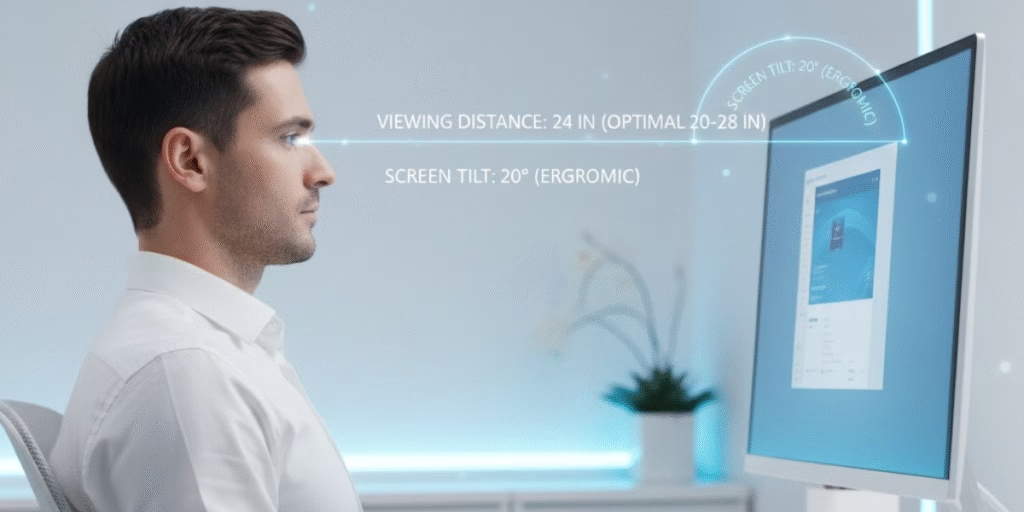
Even perfect monitor settings for eyesight can’t compensate for poor ergonomics. Here’s the proper positioning:
Critical Positioning Guidelines:
EYE LEVEL
↓
┌─────────────────┐
│ │ ← Top of screen at or
│ MONITOR │ slightly below the eyes
│ │
└─────────────────┘
10-20°
Tilt
← 50-71 cm →
(20-28 inches)
Setup Checklist:
- Distance: 50-71 cm (20-28 inches) from eyes
- Height: Top of screen at or slightly below eye level
- Tilt: 10-20° back from vertical
- Lighting: Position the screen perpendicular to the windows
Studies show proper positioning reduces musculoskeletal symptoms by up to 40%.
The 20-20-20 Rule: Your Secret Weapon
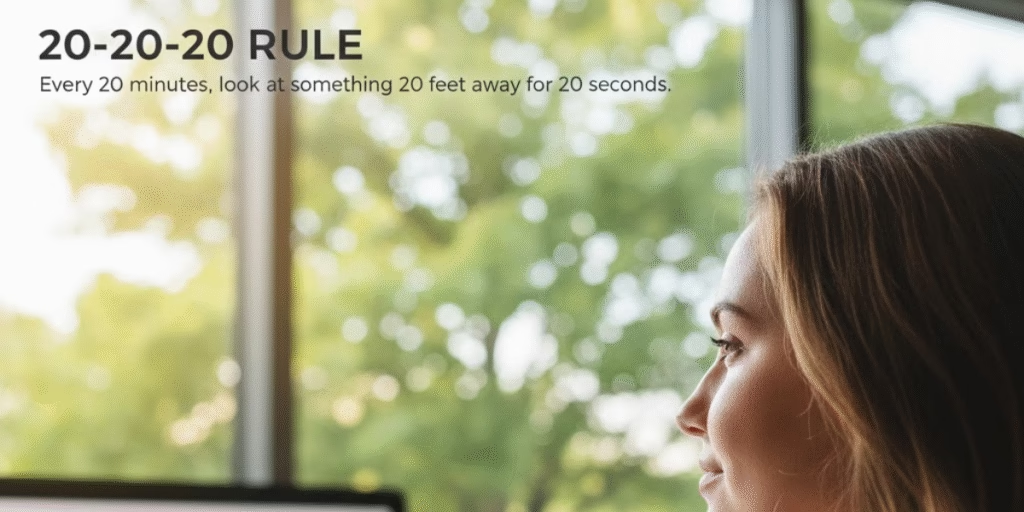
Despite all technological advances, this simple habit remains the most effective intervention:
Every 20 minutes, look at something 20 feet away for 20 seconds.
A 2023 contact lens study validated this rule’s effectiveness for maintaining tear film stability and reducing dry eye symptoms. Set smartphone reminders or use browser extensions to enforce compliance.
Dark Mode vs Light Mode: The Verdict
The answer depends on your environment:
- Bright rooms: Light mode (dark text on white) provides better clarity
- Dim environments: Dark mode reduces glare and light emission
- Mixed use: Automatic switching based on time of day
Contrary to popular belief, dark mode isn’t universally better; it strains eyes more in bright conditions.
Monitor Features Worth Investing In
When shopping for a new monitor in 2026, prioritize these features for optimal monitor settings for eyesight:
- Flicker-free certification (TÜV Rheinland)
- Built-in ambient light sensor
- Low blue light modes (multiple presets)
- Anti-glare coating (matte finish preferred)
- Wide adjustability (height, tilt, swivel)
These features provide more eye comfort than superficial specs like ultra-high refresh rates for non-gaming use.
Beyond Settings: Holistic Eye Care
Monitor optimization is just one piece of the puzzle:
- Regular eye exams: Annual checkups catch refractive errors early
- Artificial tears: Preservative-free formulations for dry eyes
- Blue light glasses: Can help, but are less important than proper settings
- Outdoor time: Natural light exposure prevents myopia progression
The Bottom Line
Protecting your eyes in 2026 requires a multi-faceted approach. Start with the core monitor settings for eyesight brightness matched to ambient light, 60-70% contrast, and temperature-adjusted color profiles. Leverage new technologies like adaptive brightness and flicker-free backlighting. Follow the 20-20-20 rule religiously. And invest in monitors with proper eye care certifications.
Remember: Computer Vision Syndrome affects 7 out of 10 screen users, but with these evidence-based strategies, you don’t have to be one of them. Your eyes will thank you for every adjustment you make today.
Expert Tips Summary:
- Adjust brightness to match room lighting (100-150 nits ideal)
- Keep contrast at 60-70% for text work
- Use 3000K at night and 6500K during the day
- Position monitor 20-28 inches away at eye level
- Practice the 20-20-20 rule without fail
- Invest in flicker-free, adaptive brightness monitors

One thought on “Best Monitor Settings for Eyesight and Productivity: 2026 Science-Backed Guide”